When a friend on iPhone shares a place, it arrives as an Apple Maps link. Maps Bridge reads that location and opens the same place in Google Maps for viewing or navigation.
Share → Maps Bridge → Google Maps
Uses the normal Android Share menu. No copying long URLs.
It looks like maps.apple.com/... or maps.apple/p/... It can be in Messages, WhatsApp, or email when someone shares a place from iPhone.
Tap the link or the Share button in your messaging app, then pick Maps Bridge from the share sheet. Maps Bridge reads the location automatically.
Maps Bridge opens the same place in Google Maps. View it first to check it, or start turn-by-turn navigation right away.
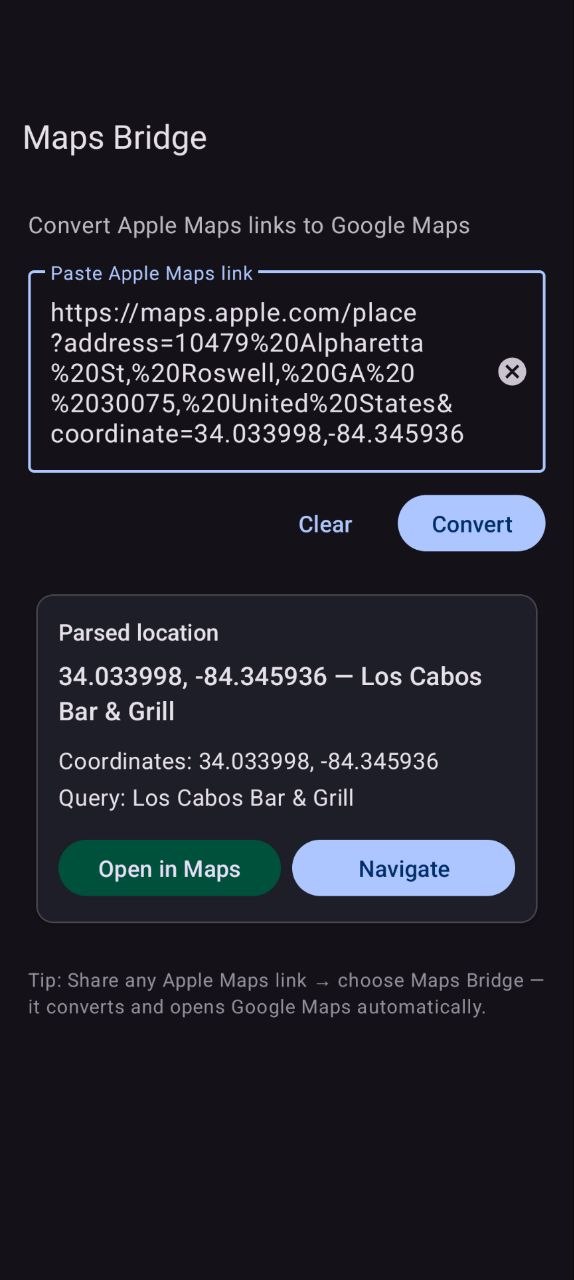
Step 2: Share to Maps Bridge or paste the link
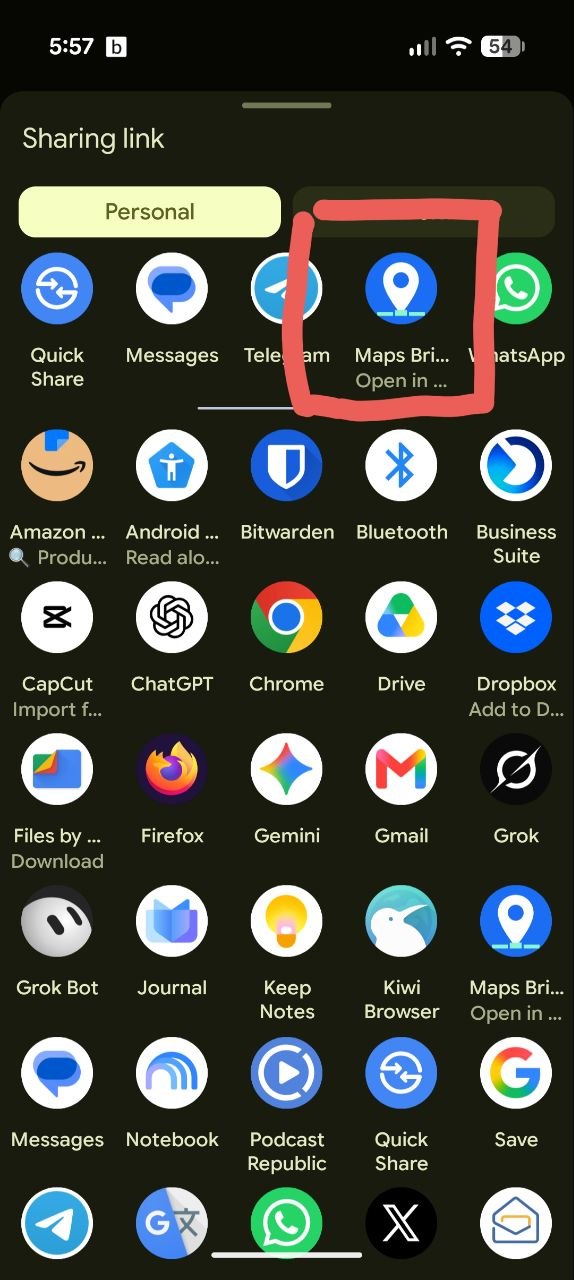
Step 3: Open in Google Maps to view or navigate
If Share does not show Maps Bridge, you can paste instead.
Works with full links (maps.apple.com/...) and short links (maps.apple/p/...). Short links need internet once to expand.
Simple and private. Conversion happens on your phone.
Full Apple Maps links are read on your phone. No account, no servers.
Short links like maps.apple/p/... need a quick check with Apple to expand. That is between your phone and Apple.
Maps Bridge passes the coordinates to Google Maps so you see the right place for viewing or navigation.
Check it starts with maps.apple.com or maps.apple/p/. Try pasting it directly in Maps Bridge. Make sure Google Maps is installed and updated. If it still fails, contact us on the Support page.
No. Install the app and use Share. There are no settings to learn.
No. Maps Bridge is independent. Not affiliated with, endorsed by, or sponsored by Apple or Google.
Install once, then Share → Maps Bridge whenever you get an Apple Maps link.
Back to home • Support • Privacy
Free • No account • Android 8.0+